Widgets
The room at a glance, before the app opens.
Adding the widget
- Hold an empty spot on the Home Screen.
- Tap Edit at the top, then Add Widget.
- Search for Dawnling, pick Wick, choose a size and tap Add Widget.
On Android, hold the home screen, tap Widgets, and drag one of the three Dawnling sizes into place; a chooser then asks for the room or a quote. Placing a widget ticks the First steps row on its own.
The Home Screen widget (iPhone)
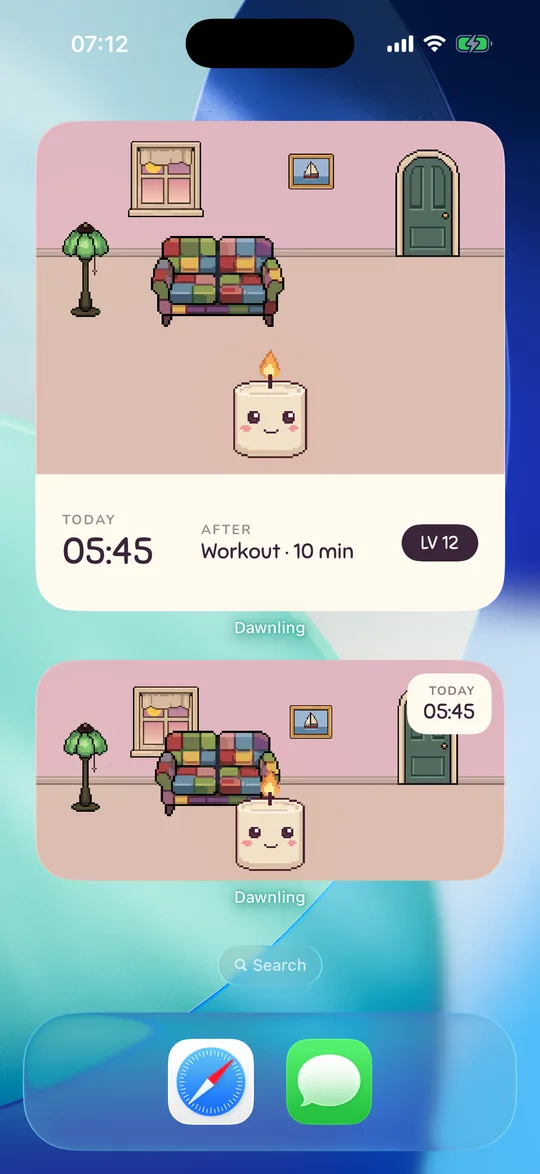
Wick comes in small, medium and large. Long-press it and choose Edit Widget to switch what it Shows: Wick's room, or a quote.
- Small: the room and a time pill with the next alarm.
- Medium: the room, with the label and time at the top right.
- Large: the room, the label and time, "After: Yoga · 10 min", and the bond level.
- Quote: one of 37 public-domain lines, one per day, with a calmer set after dark, plus the label and time.
The label above the time changes with the day: TODAY, TOMORROW or the weekday; SEE YOU AT while Wick is asleep; GOOD MORNING with the morning count for the hour after you wake; NO ALARM YET when there is none. The room follows the time of day and the day's weather, and Wick wears the flame colour you picked.
Widgets read the same files as the app, on the phone, and refresh whenever something changes plus at the moments the day turns. No network is involved.
Lock Screen and StandBy (iPhone)
- Lock Screen widgets: a round one with Wick (asleep at night), and a rectangular one with "Wick" and "Tomorrow 6:30 AM" or "No alarm set". Add them from the Lock Screen's Customise view.
- StandBy: put the small widget in StandBy and it becomes a bedside clock with a dark look: the label, a large time and Wick, with "z z z" while asleep.
- Live Activity (iOS 26 only): while the alarm rings or snoozes, the Lock Screen and the Dynamic Island show "Time to wake up" or a snooze countdown. Tapping it opens the wake screen.
Android widgets
Three sizes, each its own entry in the widget picker, with a room or quote choice when placed. Android has no Lock Screen widgets or Live Activity; the alarm's own notification carries the Snooze and Start my morning buttons instead.
Not answered here? Email and a person reads it, usually the same day.
hello@dawnling.app