
Dawnling/Help/Alarm reliability
Alarm reliability
The alarm ringing is the whole promise. Here is exactly how Dawnling rings on each phone, what can stop it, and how to check.
Which alarm path your phone uses
Dawnling rings three different ways depending on the phone, and the differences matter, so find yours first. The app picks the path itself; there is nothing to choose.
| Phone | How it rings | Silent switch | Do Not Disturb / Focus |
|---|---|---|---|
| iPhone, iOS 26+ | Apple's alarm system (the same one the Clock app uses) | Rings through it | Rings through it |
| iPhone, iOS 17 or 18 | A Time Sensitive notification with sound | Stays quiet, vibrates only | Rings through it if Time Sensitive is allowed |
| Android | A foreground alarm service, like the built-in Clock | Rings through it | Rings through it |
To see your iOS version: Settings, General, About, then Software Version.
iPhone with iOS 26 or later
On iOS 26 Dawnling hands the alarm to Apple's own alarm system. It fires when the app is closed, sounds through silent mode and every Focus, keeps ringing until stopped, and shows up on an Apple Watch. This is the most reliable path Dawnling has.
Checklist
- Alarms must be allowed. Settings → Apps → Dawnling → Allow Alarms. This is a separate permission from notifications. Dawnling asks for it at the end of onboarding, and Settings → Notifications → Alarm permission inside the app shows whether it is on.
- Turn the ringer volume up before bed. The alarm plays at your ringer volume. Dawnling has no volume control of its own on iPhone.
- Don't hide or lock the app. An app that is hidden or locked behind Face ID in the App Library cannot fire alarms. There is no error; it simply stays silent.
What the ringing looks like
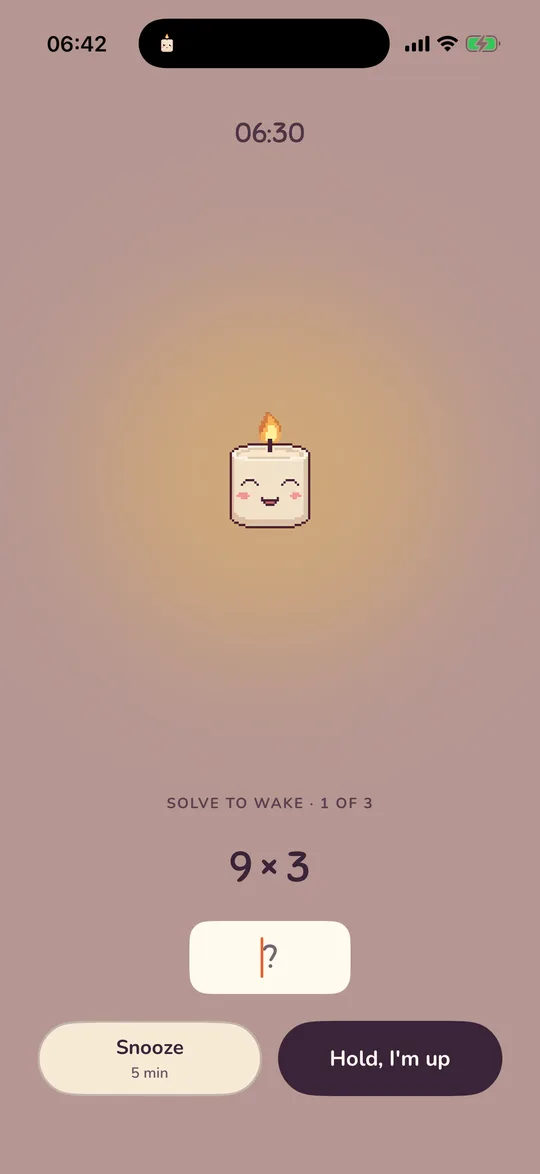
The phone shows Apple's full-screen alert with the alarm's label (or "Wick is waking up") and two buttons: I'm up and, if snooze is on for that alarm, Snooze.
- Any physical button stops the alarm. Power and volume buttons dismiss it; they never snooze. That is how Apple's alarms work, not a Dawnling choice. If you silence it that way, the app does not open, and the morning check-in may ask about it later.
- I'm up opens Dawnling on Wick's wake screen, which takes over the sound and keeps ringing until the mission is solved or you confirm you are up. The banner body itself cannot be tapped; only the buttons act.
- Snooze on the alert is Apple's countdown, and it has no cap. A snooze from inside Dawnling's wake screen arms a one-off alarm through the same system, so it is as reliable as the main alarm.
- A Live Activity on the Lock Screen and in the Dynamic Island shows "Time to wake up", and a live countdown while snoozing. Tapping it opens the wake screen.
If you upgrade an iPhone from iOS 17 or 18 to 26, Dawnling moves every alarm to the new system on the first launch and clears the old ones, so nothing rings twice.
iPhone with iOS 17 or 18
Apple only lets its own Clock app ring through silent mode on these versions, so Dawnling rings as a Time Sensitive notification with a 26-second sound. It reaches you through a Focus, but it obeys the silent switch. Two follow-up notifications titled "Wick is still waiting" arrive one and two minutes later in case the first one is missed.
Checklist
- Notifications must be allowed. Settings → Dawnling → Notifications → Allow Notifications. Without this, nothing can wake you.
- Sounds and Lock Screen alerts on in the same screen. A notification with the sound switched off is a silent alarm.
- Time Sensitive must be on, also in that screen. This is what lets the alarm through a Focus or Sleep Focus.
- Time Sensitive inside the Focus too. Settings → Focus → your Sleep or Do Not Disturb Focus → Apps. There is a second Time Sensitive Notifications switch that belongs to the Focus itself. It is separate from the one in Dawnling's notification settings, and either being off keeps the alarm quiet while the Focus is on. This is the one people switch off without noticing.
- Switch silent mode off at night. With the switch on, the alarm vibrates but stays quiet. A Sleep Focus is the quiet-night alternative that still lets the alarm through.
- Turn the ringer volume up before bed. The alarm plays at your ringer volume.
What the ringing looks like
- A notification with the alarm's label and "Tap to start your yoga" (or "Tap when you're up" without a routine). Tapping it opens Wick's wake screen, which loops the sound itself until you are up.
- If you unlock the phone within 15 minutes of an alarm that nobody tapped, Dawnling opens the wake screen on its own.
- Snoozes are counted per alarm per day, up to the cap you set in the editor (1, 2, 3 or unlimited). A snooze re-fires as a notification titled "(again)".
- With no mission set, the wake screen shows Hold, I'm up: a 0.6-second hold, so a half-asleep tap does not stop the alarm.
Android
On Android Dawnling rings like the built-in Clock: an exact alarm that is exempt from battery saving, a foreground service that plays the sound on the alarm channel (so it rings through silent mode and Do Not Disturb, and vibrates), and a full-screen wake screen over the lock screen. It re-arms itself after a reboot, a time-zone change and a clock change. If nobody attends to it, the ring stops by itself after 60 minutes.
Checklist
Settings → Alarm reliability inside Dawnling shows each of these with a button to the right place.
- Allow notifications when Dawnling asks during setup. On Android 13 and up the alarm screen and its Snooze / Start my morning buttons ride on this.
- Allow exact alarms. Settings → Apps → Dawnling → Alarms & reminders. Without it Android may ring "sometime after" instead of at the minute.
- Allow the full-screen alarm so the wake screen can appear over your lock screen. Android 14 and later ask for this separately.
- Set battery to Unrestricted (recommended). Exact alarms are already exempt from Doze, but some phones add their own sleep rules on top. Settings → Apps → Dawnling → Battery → Unrestricted.
- Alarm volume. Android has a separate alarm volume; Dawnling's Settings has a slider for it and rings at that level.
Phones that put apps to sleep
Samsung, Xiaomi, OPPO, OnePlus, Huawei and Vivo each ship extra battery managers that can stop an alarm app dead. If your alarm was late or silent, this is the first place to look.
| Maker | What to check |
|---|---|
| Samsung (One UI) | Settings → Battery → Background usage limits: take Dawnling off "Sleeping apps" and "Deep sleeping apps", and turn off "Put unused apps to sleep". Then Settings → Apps → Dawnling → Battery → Unrestricted. |
| Xiaomi, Redmi, POCO (MIUI / HyperOS) | Settings → Apps → Manage apps → Dawnling: Autostart on, Battery saver "No restrictions". Also lock Dawnling in the recent-apps view (pull the card down and tap the lock). |
| OPPO, Realme (ColorOS) | Settings → Battery → App battery management → Dawnling: allow background activity, and turn "Sleep standby optimisation" off. |
| OnePlus (OxygenOS) | Settings → Battery → Battery optimisation → Dawnling → Don't optimise. Verified under forced deep Doze on a OnePlus during testing. |
| Huawei, Honor (EMUI) | Settings → Battery → App launch → Dawnling: switch "Manage automatically" off, then allow Auto-launch, Secondary launch and Run in background. |
| Vivo, iQOO (Funtouch) | Settings → Battery → Background power consumption management → Dawnling: allow high background power. Also i Manager → App manager → Autostart. |
The independent site dontkillmyapp.com keeps a per-maker list that is updated more often than this page.
Silent mode, Do Not Disturb and Focus
| iOS 26+ | iOS 17 / 18 | Android | |
|---|---|---|---|
| Silent switch on | Rings | Vibrates, no sound | Rings |
| Do Not Disturb or a Focus | Rings | Rings if Time Sensitive is allowed in both places (see above) | Rings |
| Volume at zero | Silent (ringer volume) | Silent (ringer volume) | Silent (alarm volume) |
| Bluetooth speaker or headphones connected | Rings on the phone | May route to the headphones; the reliability log warns about this | Rings on the phone |
| Low Power Mode / battery saver | Rings | Rings; the log notes it was on | Rings, unless the maker's own sleep rules interfere (table above) |
| Phone off | Nothing rings on any phone. Android re-arms the alarm when the phone boots. | ||
Test an alarm in ten seconds
Every alarm's editor has a Test section at the bottom with the button Hear it in 10 seconds. It rings that alarm through the real path, sound and all, ten seconds after the tap. Lock the phone first: that is the morning it proves. The test never opens a morning and never counts in the reliability numbers.
On iOS 17 and 18 the test obeys the silent switch, the same as the morning will, so try it with the switch in the position you sleep with.
The morning check-in
Some mornings Dawnling cannot tell from the inside what happened: the alarm was armed and came due, but nobody tapped, snoozed or opened the app. That happens when a hardware button silenced it, or when it never rang. Between ten minutes and twelve hours after such an alarm, the home screen shows one card: Did Wick wake you this morning?
- Yes: Wick wakes up in the room and says "Good morning, then."
- It didn't ring: opens the report described below.
- Slept through: "No harm done. Tomorrow's a fresh one." Nothing is lost.
- Don't ask me this: switches the check-in off. Settings → Notifications → Morning check-in turns it back on.
Each alarm and morning is asked about once, and only if the app cannot already see an answer in its log.
The reliability log
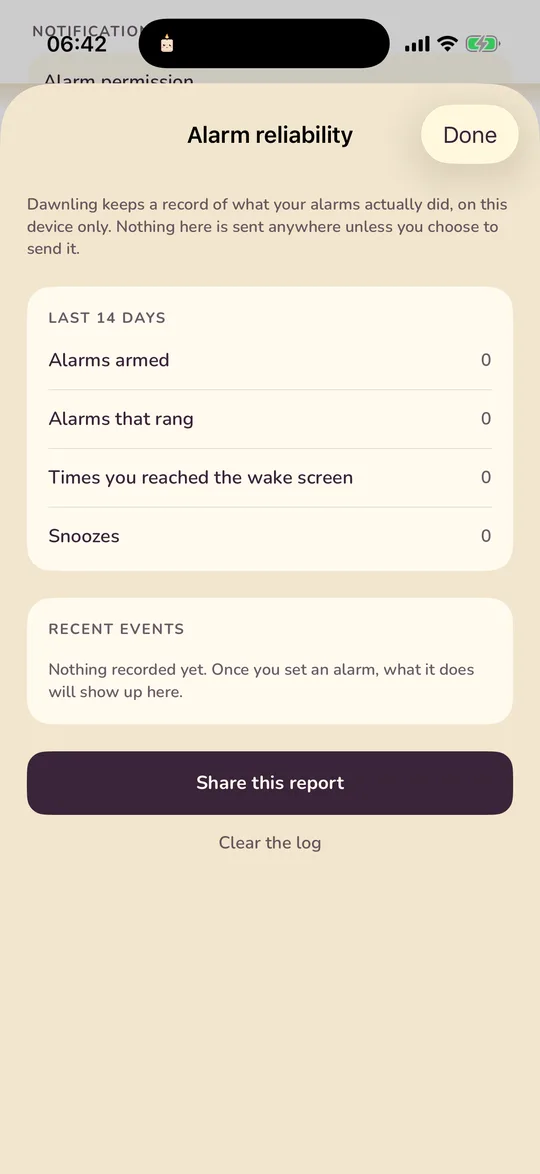
Settings → About → Alarm reliability keeps a record of what your alarms did, on the device only. Nothing here is sent anywhere unless you share it.
- Last 14 days: alarms armed, alarms that rang, times you reached the wake screen, snoozes, and how long you usually take to respond.
- Worth knowing: warnings the app noticed, such as notifications switched off, Low Power Mode on, notification sound off, or audio routed to Bluetooth.
- Recent events: the last 25 entries, newest first.
- Share this report opens the share sheet with a plain-text version: device, OS version, which alarm path is in use, the counts and the events. No names, no routine details, nothing about your room.
- Clear the log deletes the record only; the alarms themselves are untouched.
If it didn't ring
Answer It didn't ring on the check-in card, or open Settings → Send feedback → The alarm did something wrong. Both copy the reliability report to your clipboard and open a message to me with the due time, your phone model and OS version already filled in, plus three short questions: was the phone locked, was silent mode on, anything else. Paste the report in and send. Nothing leaves the phone until you do.
If no mail app is set up, the report is still on the clipboard, and Share the report another way hands it to any app you like. Sending it to hello@dawnling.app is what gets it fixed.
Not answered here? Email and a person reads it, usually the same day.
hello@dawnling.app